Add a Contact Me Page (Form) To Your Blogger/BlogSpot Blog
 2:29 PM |
  Posted by
Zaoui Mohammed |
Posted by
Zaoui Mohammed |


Whether you have a personal or a commercial blog, one of the important pages which must be present on every blog is a "Contact Us/Me" page. It is through this page, that your visitors give you their suggestions, feedback and advise.
Page Navigation plugin For Blogger nav-pages
 |
| Add a Nav-pages for blogger |
When you use this hack,you will see this kind of navigation on your blog’s home page and label pages(needs little customization).
Implementation of Blogger Page Navigation
Those who are bad at HTML modifications can use my one click installer :) After installing this widget proceed to the label fix.
Free domain name Full Dns controle

Désormais Dot TK propose non seulement le meilleur service d'URL Forwarding, mais vous permet aussi d'utiliser vos propres nameservers avec tous vos domaines gratuits.
How to Use JavaScript to Change a Cascading Style Sheet (CSS) Dynamically

How to Created Rounded Corners for Your Box Borders in CSS

If you were to create a rectangular box outline around the content on your web page using Cascading Style Sheets (CSS), the default is that your box borders will have pointed right-angled corners. To get rounded corners for the box, many webmasters in the past have resorted to using images to give the appearance of curved corners. This article shows you how to achieve the same effect using CSS. It also discusses some of the limitations to using CSS for this purpose at this time.
Free and Open Source PHP Wiki Software

- WackoWiki
- WackoWiki is a Wiki engine that uses PHP and MySQL. It provides access controls (ACLs) for each page, a WYSIWYG editor, localizations for a number of languages, email notification on changes and comments, several cache levels, design themes or skins, XHTML compliance,


15 Sites to download Free PSD themes files
1.) Photoshop Files

30+ High-Quality Free PSD Website Templates to Download
When it comes to designing a website Photoshop is an excellent tool for it, No design Software gives you quite so much control as Adobe Photoshop in designing a website.
Most Designers share their Creative design stuffs to others for free. so that others can learn from their works, At sometimes these collection will become marvelous time saver. and a learning source for beginner web designers
Here I’ve listed 30+ Quality PSD web templates to Download,
How do I find an old post?
 You can use the search box to filter the list for posts
 All about Blogger's post editor
- Compose: a wysiwyg mode where you manipulate text with formatting buttons
- Edit HTML: a raw mode where you edit the html manually
- Preview: renders a full-body preview of the post, including its Title, links and images
 If you'd rather not use the wysiwyg editor, you can disable it in the Settings | Basic tab in Blogger. The formatting buttons are only available in certain browsers, as explained in this Help article. Keyboard shortcuts are also available; they can greatly speed up the posting process and we encourage you to use them.
 Features, from left-to-right:
- Font
- Font size
- Bold
- Italic
- Font color
- Link
- Left-justify
- Center
- Right-justify
- Full-justify
- Ordered (numbered) list
- Unordered (bullet) list
- Blockquote
- Spell check
- Upload image
- Remove formatting from selection
How Blogger Autosaves Your Posts
 If you want to make sure the saved copy is completely up to date, you can click the "Save" button yourself. You'll remain on the posting form and can continue typing, since the saving happens in the background. If you're done working on the post for now, you can either click "Publish Post" to convert the draft into a post, or click "Return to list of posts" if you want to leave it as a draft and go back to the Edit Posts page.
 This autosave feature means that you have a safety net for the cases when you're working on a new post and the power goes out, or your browser crashes, or some other calamity occurs. All you have to do is log back in to Blogger and find your saved draft on the Edit Posts page. You can even do that from a different computer.
Note: Autosave does not occur when you are editing posts that have previously been published to your blog. This keeps your readers from seeing your edits until you're done with them. When editing a published post, you can click "Publish Post" to republish the changes to your blog, or click "Save as Draft" to unpublish the post and turn it into a draft.

How do I use the transliteration feature?
What is transliteration?
Blogger offers an automatic transliteration option for converting Roman characters to the Indic characters used in Hindi, Kannada, Malayalam, Tamil, and Telugu. This lets you type these languages phonetically in English script and still have them appear in their correct alphabet. Note that this is not the same as translation -- the sound of the words is converted from one alphabet to the other, not the meaning. For example, typing 'hamesha' transliterates into Hindi as:
Enabling the Transliteration Feature
To enable this feature, go to the Settings | Basics page, select Enable for the transliteration option, and select your preferred language. This setting will affect all blogs on your account, similar to the Compose Mode setting. Next, go to your post editor and you'll see a new button.
Typing with Transliteration
This button toggles the transliteration feature on and off. (You can also use Ctrl+G as a shortcut.) When it's on, it affects the title, labels, and body of your post. The letters of a word will appear as you type them until you reach the end of the word. As soon as you type a space or a punctuation mark, the letters will be converted to Indic characters, like this: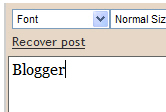
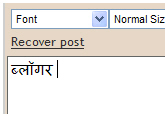 If you prefer to do the transliteration all at once, rather than as you go, you can type your text with the transliteration button turned off. Then select all your text and click the button. Everything selected will be transliterated at once, and you can go back and edit it as desired. (Note: This only works in the body of the post, not in the title or labels.)
 The transliteration will attempt to match the sounds of the letters as accurately as possible between the two alphabets. If you find that it's incorrect, however, you can fix it.
Correcting and Editing Words
When you find a word you want to change, just click on it once, using the left mouse button. This displays a short menu of alternate spellings, as well as an option to switch back to the original Roman characters you typed, or to edit the word further.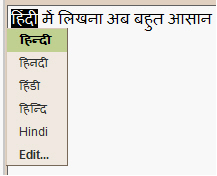 If you choose the Edit... option, you'll see the word in an Edit mode that provides on-the-fly suggestions for the next letter in the sequence. Click on the letter you want to enter next; it will be added to the word, and suggestions for the following letter will come up. You can also continue typing from your keyboard. Type a space or press the Enter key to end the word and go back to normal typing mode.
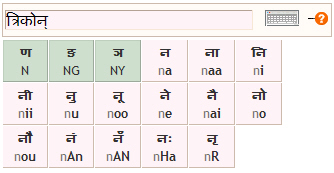 The suggestions provided in the Edit... option are limited to letters which could reasonably follow the ones already typed. Each button shows some English text in gray, which indicates the part of the last syllable that you have already typed. The text in bold indicates what you can type to get the Indic letter displayed on that button. Alternatively, you can just click the button and it will add the correct letter for you. If a button is green, that means that the letter is phonetically similar to the last typed syllable, and clicking on the button will replace it.
 On-Screen Keyboard
If you want complete control over the choice of letters, click the keyboard icon to the right of the word you're editing. A full on-screen keyboard comes up, and you can simply click the letters you want to insert them into your text.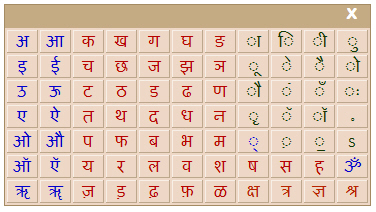 Matras (accent marks) are shown with dotted circles to indicate that they can be applied to different letters. To use them, first click the letter you want to use, then click the matra you want to apply to it.
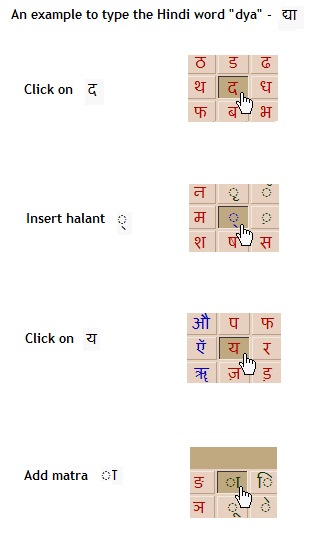 Type a space, punctuation mark or the Enter key to end the word and go back to normal typing mode, or just click the X icon on the keyboard to remove it.
Character Mappings
For a complete mapping of which Roman characters will be converted into which Indic characters, please see the article below for the language you're using. Note that these are static mappings that only apply in Edit mode. When you're simply typing as usual, a more complex algorithm is used to determine the correct characters to display based on the sound of each overall word.Saving Corrected Transliterations
Whenever you type a word and the Indic transliteration is not the one you wanted, you can correct it using the editing features described above. When you do this, the new transliteration is remembered for you. If you type the same word again in the future, it will then be transliterated correctly based on your saved preference. These corrections are stored to help us improve our service.Installing and Viewing Indic Fonts
Blogger uses Unicode to encode the Indic characters in your post. Unicode is a system of representing text and symbols and is supported by all modern browsers and operating systems.Mozilla Firefox requires support for complex text layout, otherwise it might display the Indic text incorrectly. The support for complex text layout is usually turned off by default, but this Wikipedia article gives a detailed explanation on how to turn it on in various operating systems. If you use Internet Explorer 6+ in Windows Vista/XP/2000, you should have no problems in viewing and editing Indic text correctly, except in the case of Malayalam. The Malayalam characters with chillus may not be rendered correctly on some systems even with complex script rendering enabled, in which case you can refer to this Wikia article for solutions.
Is transliteration available in other Google services?
Yes. Transliteration is available as a standalone product, as an iGoogle gadget and for writing Indic scraps in orkut. Please see this article for more information.Notes:
- The transliteration feature is only supported in Internet Explorer versions 6.0 and higher on Windows, and Firefox 1.5 and higher on Windows and Linux. It's not supported on Macs.
- The transliteration button is available only in Compose Mode. All the other editing features of Compose Mode will continue to work normally with transliterated text, and you can also copy and paste text to work with into the editor.
- If you see a message saying that the transliteration service is unavailable, check your internet connection. This feature requires a live internet connection, as all the transliteration is done on Google's servers and sent back to your browser while you work on your post.
- For further help with transliteration, please see the Blogger Help Group.
What is a post template?

Sony Ericsson Theme Creator


gratuitement Download
Personnalisez votre téléphone mobile Sony Ericsson en créant des thèmes uniques ! Selon vos préférences, Sony Ericsson Theme Creator vous guide pas à pas dans l'élaboration de votre nouveau thème ou vous laisse carte blanche pour personnaliser les moindres détails. Commencez par choisir une image ou une couleur d'arrière-plan - en important une photo à partir de votre ordinateur ou téléphone -, sélectionnez le style d'affichage souhaité, importez des sonneries, modifiez la taille des polices, etc. La fonction "Preview" présente un aperçu de votre création au fur et à mesure des modifications. Une fois le thème achevé, il ne vous reste plus qu'à le transférer vers votre téléphone via Bluetooth ou à l'aide d'un câble USB.

Version :
4.16
Taille :
21.04 Mo
Configuration minimale :
Windows 2000/XP/Vista/7
Licence :
Gratuit
Date de sortie :
19/10/2010
Langue :
Anglais
How to submit blogger sitemap to google-useful tip for new bloggers
.It also helps you to know,how many pages exactly are indexed,and what people searched in the search engine to visit your site.
Let me explain the detailed procedure on how to submit your blogger sitemap to google.
1.First,go to google webmaster tools and sign in with your gmail account.
2.After you logged in, you will see this asking you to add a site.

Add your blog url(ex:kranthitips.blogspot.com).Don't add with http or www.
3.Next,it asks you to verify your site.It is just to confirm whether you are the owner or not.
CLICK on the 'verify your site' link.

Next,

4.There are two ways to verify your ownership but, there is only one way for the blogger users to add a metatag.

5.Copy the metatag.
Now,sign into your blogger account>click the layout button>Edit html and paste the metatag just after the head tag and save the changes.

and click the verify button in the google webmaster tools and there will be a confirmation message saying that you have sucessfully verified.

Now,you have to submit a sitemap for google to crawl your site.Go back to the google webmaster dashboard or (home) and click the 'Add' link which is next to your blog name and in the Sitemaps column.Then,you see this,

Choose 'Add general web sitemap' from the dropdown menu and type rss.xml or atom.xml next to your blog address as shown below

or
 and click the 'Add General Web Sitemap' button.
6.That's it.Now your sitemap is successfully submitted to google.Check 2 or 3 days after and you will see the detailed statistics of your blog(indexed pages,any errors,etc.)
If you have any questions regarding this,you can ask here via your comments
We come across all kinds of mythical creatures in this downloadable role-playing game.

 For many role-playing game fans with tight schedules, it can be tough to dedicate dozens of hours to a game before the next one catches your eye. Downloadable titles are known to be easy to pick up and shorter in length so that you don't have to commit your evenings and weekends to beat them. That's
 How can I use the Blogger Layouts features?
- Find the name of your blog on your dashboard, and click the Template link next to it. If this link says Layout instead, then it's already upgraded and you can skip the rest of these steps.
- On the Template page you should see the standard window of HTML code. Now look in the navigation links for the tab that says Customize Your Design and click it.
- You'll get a message explaining that Blogger will make a backup of your current template and replace it with an upgraded one. The backup will be made available indefinitely, so you can revert back to it later if you need to. Click the Upgrade Your Template button to continue.
- Choose one of our default template designs. You'll be able to modify it all you want, once you pick one of these as the starting point. Click Save Template when you've made your choice.


Subscribe To


 Posts
Posts